Delivered as an Azure service, run virtualized applications on-premises with full stack lifecycle management while easily connecting resources to Azure.
Refresh and modernize aging virtualization platforms
Integrate with Azure for hybrid capabilities
Provide compute and storage at remote branch offices
Deploy and manage Azure cloud and Azure Local anywhere with Azure Arc as a single control plane
1 - Storage Stack
1.1 - Storage Stack Overview
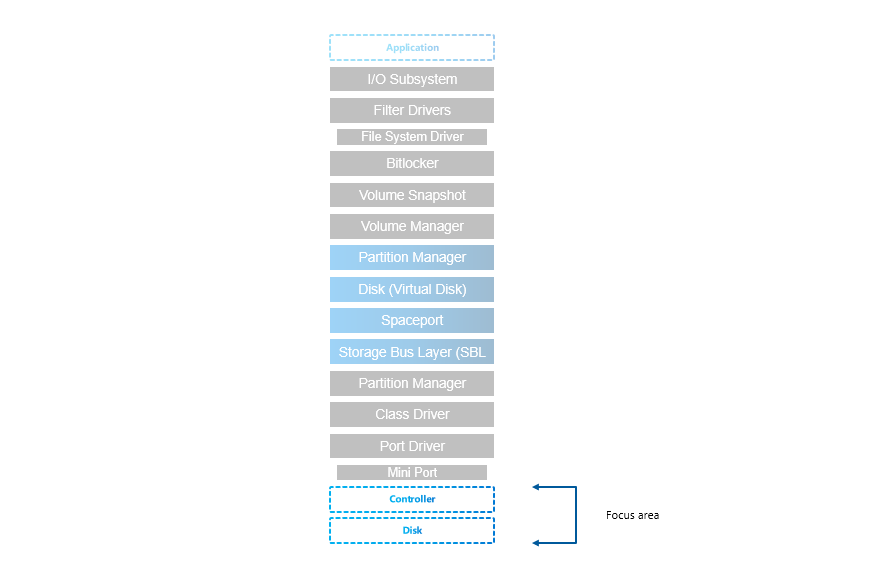
Understanding storage stack is crucial for understanding what technologies are involved and how (where storage replica is, where is ReFS Multi-resilient Volume, …). Understanding how layers are stacked will also help when IO flow is troubleshooted - like reviewing performance counters or troubleshooting core functionality.
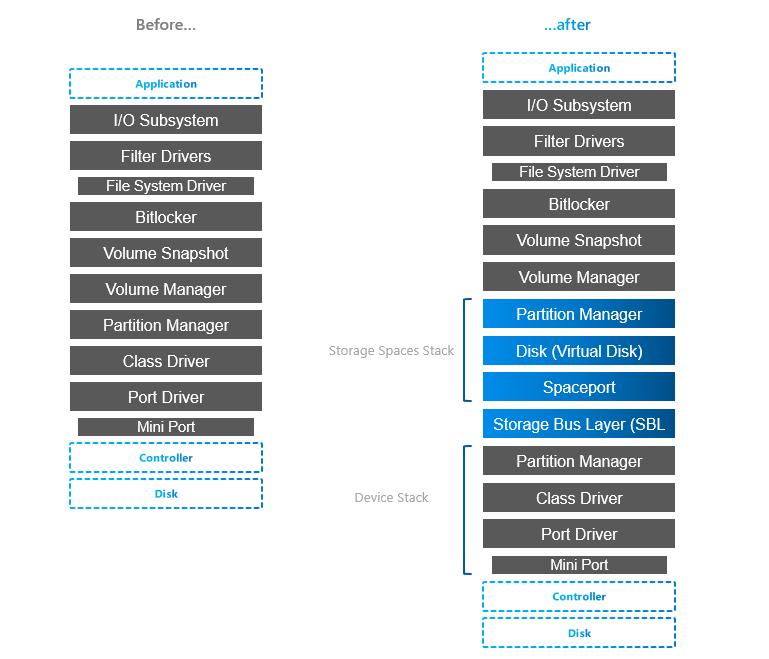
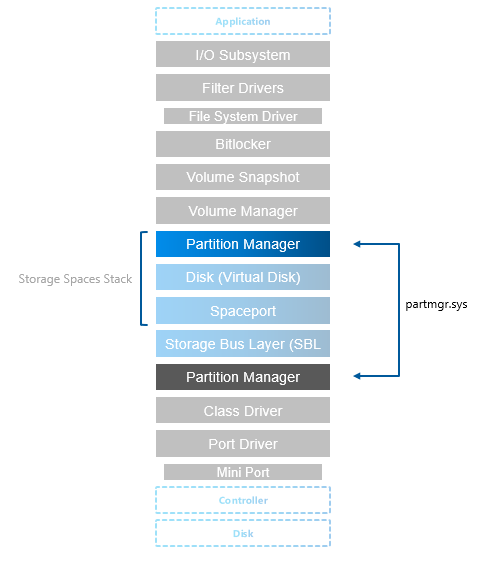
Traditional stack compared to storage spaces stack (note that MPIO is missing, but for Storage Spaces Direct it’s not needed as there is only one path to the physical device, so it was omitted)
You can notice 4 “new” layers, but actually it’s just Spaces layer (Spaceport) and Storage Bus Layer.
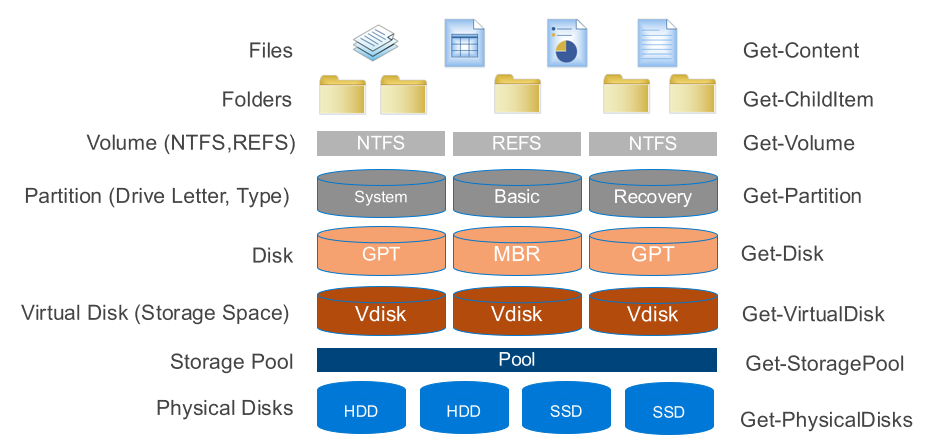
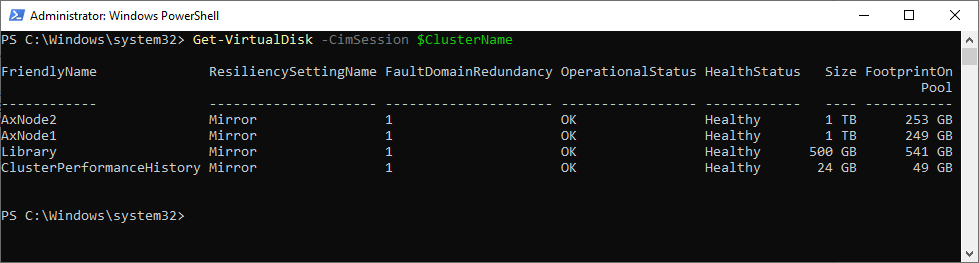
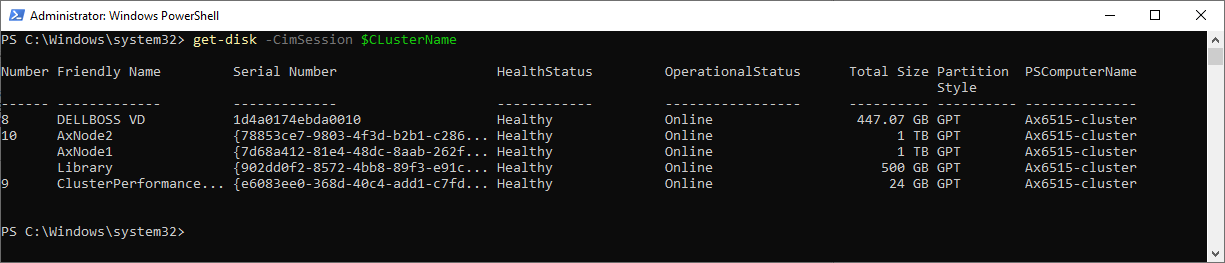
To better understand what’s in the stack, you can also explore some parts with PowerShell
Anyway, let’s explore layers a bit. Following info is based on storage description someone somewhere created and pushed to internet. The only version found was from webarchive and can be accessed here.
Layers below S2D Stack
Port & Miniport driver
storport.sys & stornvme.sys
Port drivers implement the processing of an I/O request specific to a type of I/O port, such as SATA, and are implemented as kernel-mode libraries of functions rather than actual device drivers. Port driver is written by Microsoft (storport.sys). If third party wants to use write their own device driver (like HBA), then it will use miniport driver (except if device is NVMe, then miniport driver is Microsoft stornvme.sys)
Miniport drivers usually use storport. performance enhancements such as support for the paralell execution of IO.
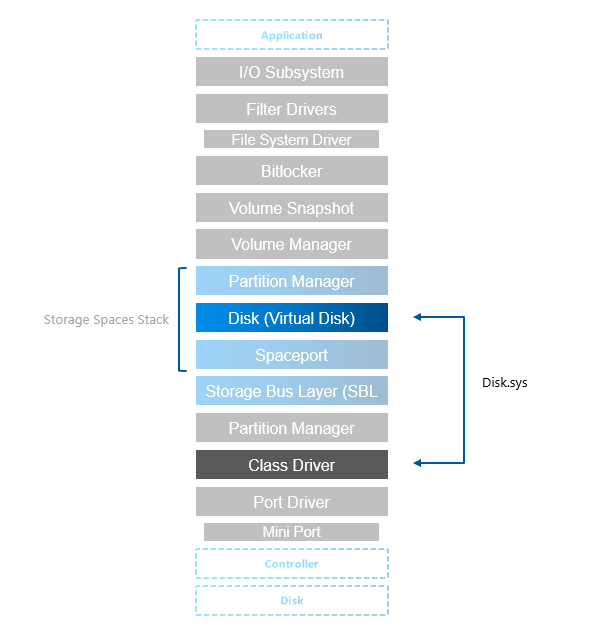
A storage class driver (typically disk.sys) uses the well-established SCSI class/port interface to control a mass storage device of its type on any bus for which the system supplies a storage port driver (currently SCSI, IDE, USB and IEEE 1394). The particular bus to which a storage device is connected is transparent to the storage class driver.
Storage class driver is responsible for claiming devices, interpreting system I/O requests and many more
In Storage Spaces stack (Virtual Disk) disk.sys is responsible for claiming Virtual Disk exposed by spaceport (storage spaces)
Partition Manager
partmgr.sys
Partitions are handled by partmgr.sys. Partition is usually GPT or MBR (preferably GPT as MBR has many limitations such as 2TB size limit)
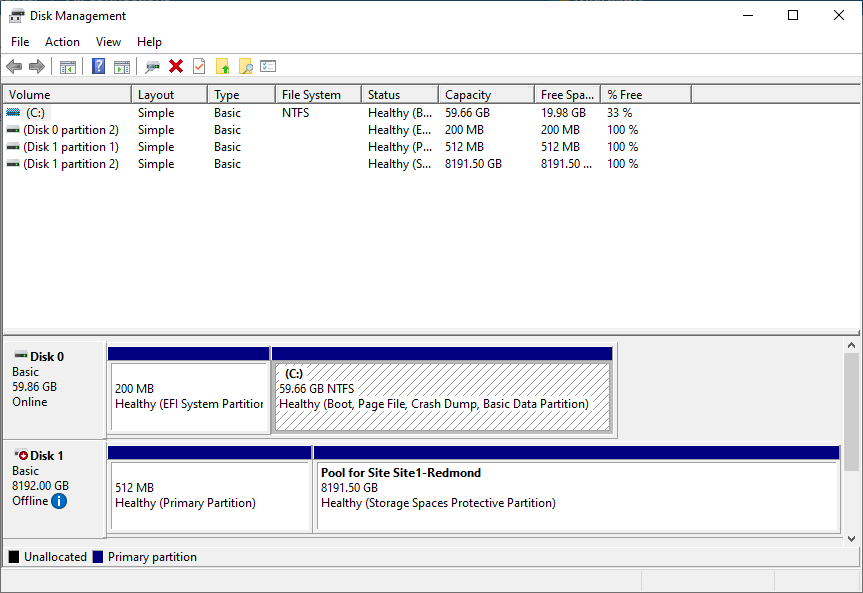
As you can see in the stack, there are two partition managers. One partition layout is on physical disk and it is then consumed by storage spaces (spaceport).
On the picture below you can see individual physical disk from spaces exposed and it’s partitions showing metadata partition and partition containing pool data (normally not visible as it’s hidden by partmgr.sys when it detects spaces).
S2D Stack
Storage Bus Layer
clusport.sys and clusblft.sys
These two drivers (client/server) are exposing all physical disk to each cluster node, so it looks like all physical disks from every cluster node are connected to each server. For interconnect is SMB used, therefore high-speed RDMA can be used (recommended).
It also contains SBL cache.
Spaceport
spaceport.sys
Claims disks and adds them to storage spaces pool. It creates partitions where internal data structures are metadata are kept (see screenshot in partition manager).
Defines resiliency when volume (virtual disk) is created (creates/distributes extents across physical disks)
Virtual Disk
disk.sys is now used by storage spaces and exposes virtual disk that was provisioned using spaceport.sys
Layers above S2D Stack
Volume Manager
dmio.sys, volmgr.sys
Volumes are created on top of the partition and on volumes you can then create filesystems and expose it to the components higher in the stack.
Volume Snapshot
volsnap.sys
Volsnap is the component that creates system provider for the volume shadow copy service (VSS). This service is controller by vssadmin.exe
BitLocker
fvevol.sys
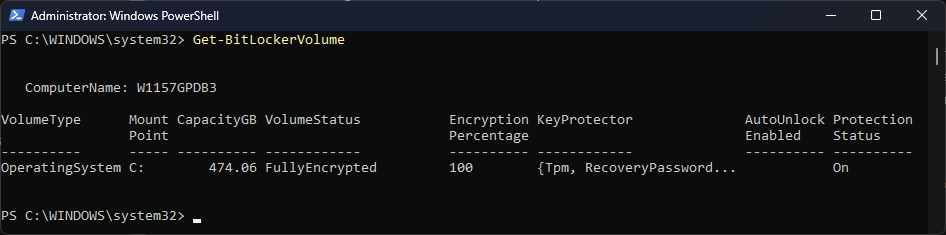
BitLocker is well known disk encryption software that is on the market since Windows Vista. In PowerShell you can expose volume status with Get-BitLockerVolume command.
Filter Drivers
Interesting about filter drivers is, that all FileSystem drivers are actually filter drivers - special ones, File System Drivers - like REFS.sys, NTFS.sys, Exfat.sys.
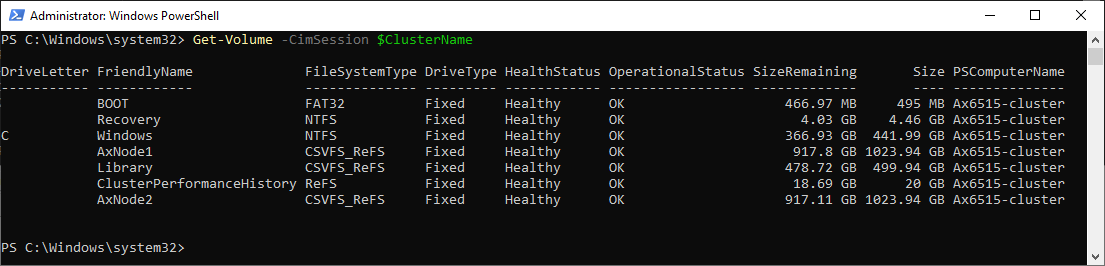
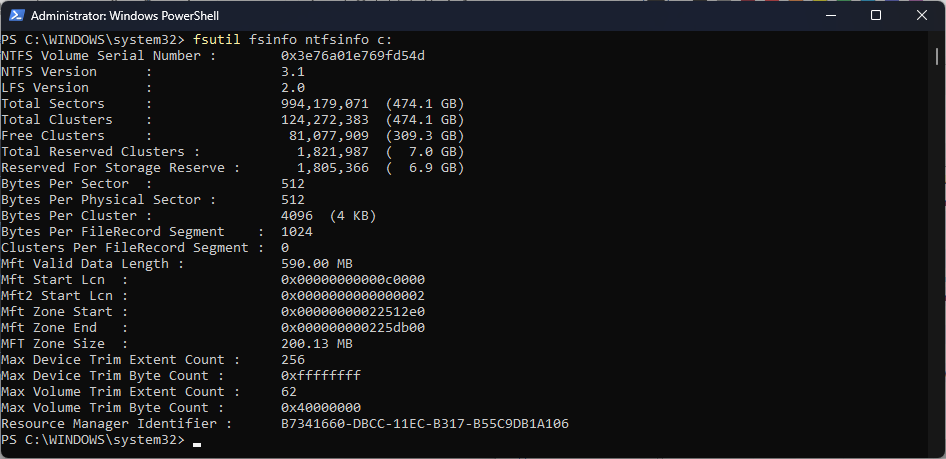
You can learn more about filesystem using fsutil
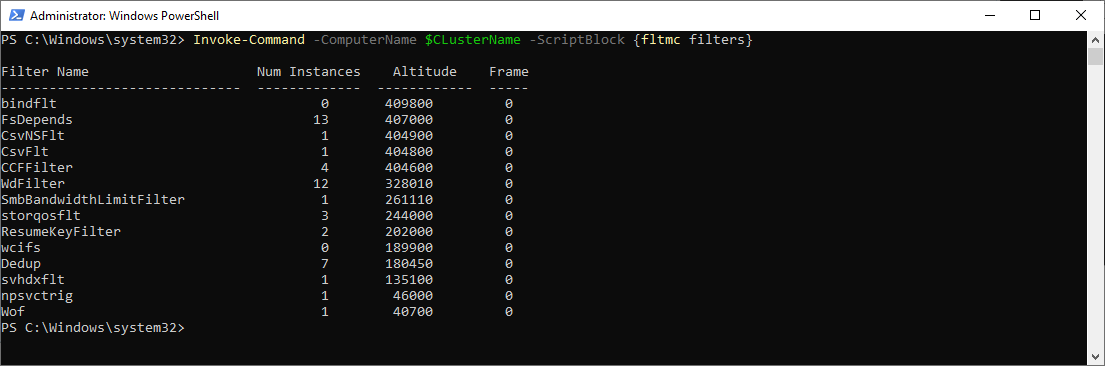
There are also many first party and third party filter drivers. You can expose those with fltmc command
As you can see on above example, there are many filters like Cluster Shared Volume (CsvNSFlt, CsvFLT), deduplication (Dedup), shared vhd (svhdxflt), storage QoS (storqosflt) and many more. Each filter driver has defined altitude and 3rd parties can reserve theirs.
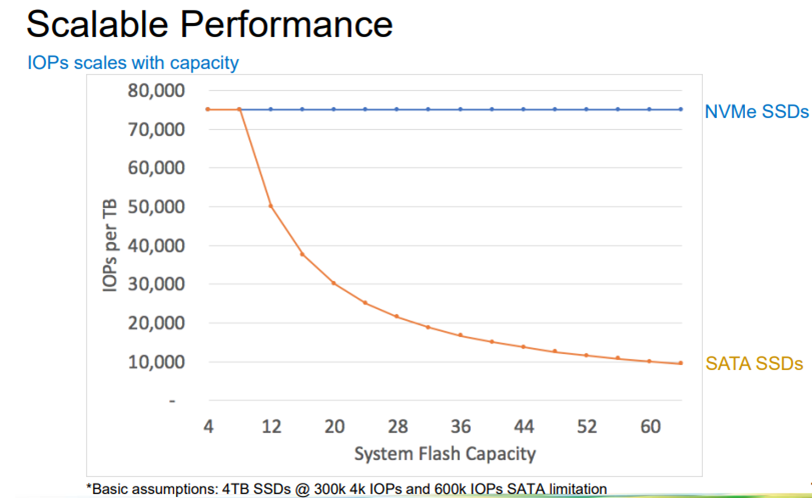
While SATA is still well performing for most of the customers (see performance results), NVMe offers benefit of higher capacity and also more effective protocol (AHCI vs NVMe), that was developed specifically for SSDs (opposite to AHCI, that was developed for spinning media). SATA/SAS is however not scaling well with the larger disks.
There is also another aspect of performance limitation of SATA/SAS devices - the controller. All SATA/SAS devices are connected to one SAS controller (non-raid) that has limited speed (only one PCI-e connection).
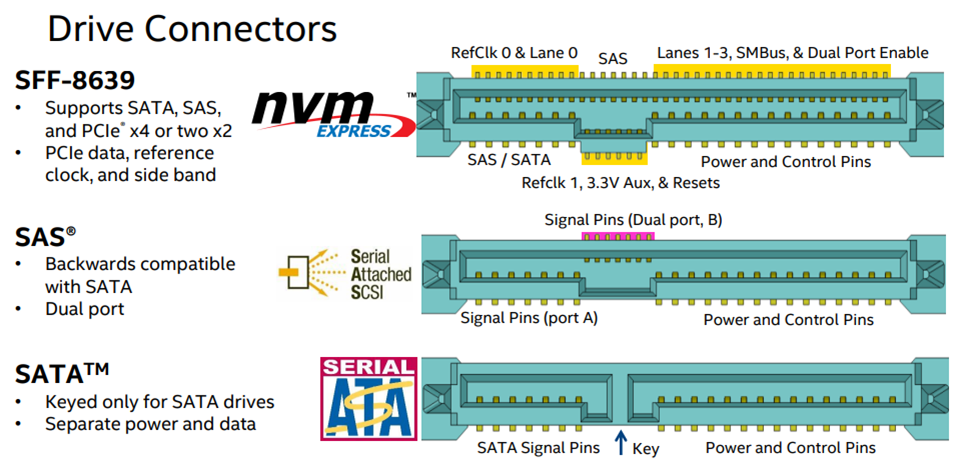
Drive Connector is universal (U2, also known as SFF-8639)
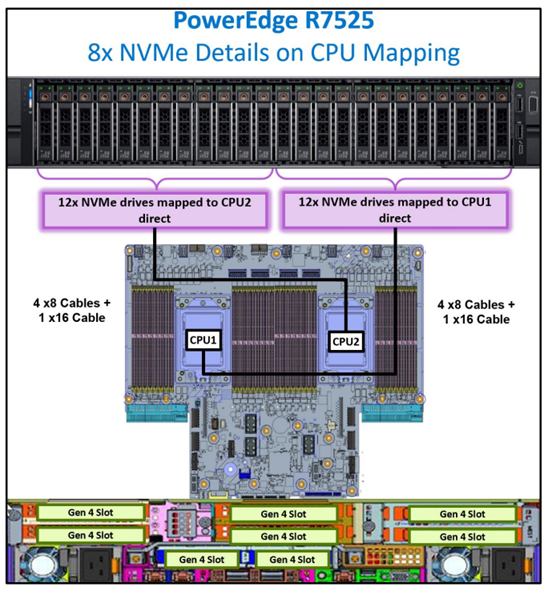
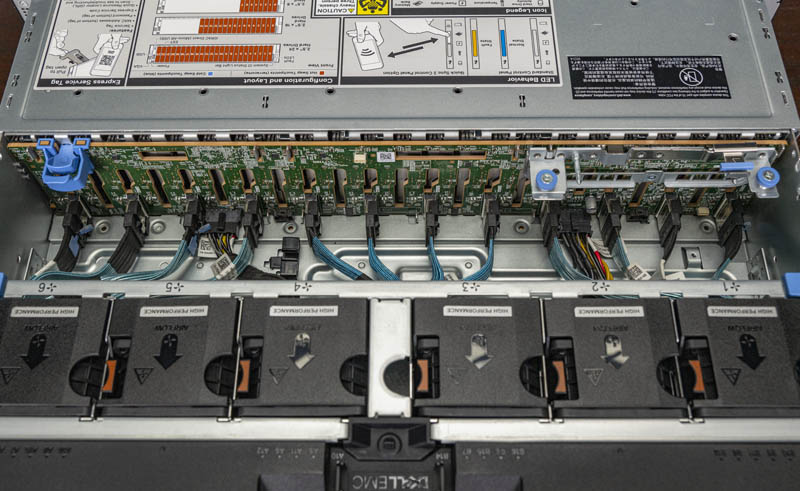
NVMe backplane connection - Example AX7525 - 16 PCIe Gen4 lanes in each connection (8 are used), 12 connections in backplane, in this case no PCIe switches.
SSDs were originally created to replace conventional rotating media. As such they were designed to connect to the same bus types as HDDs, both SATA and SAS (Serial ATA and Serial Attached SCSI).
However, this imposed speed limitations on the SSDs. Now a new type of SSD exists that attaches to PCI-e. Known as NVMe SSDs or simply NVMe.
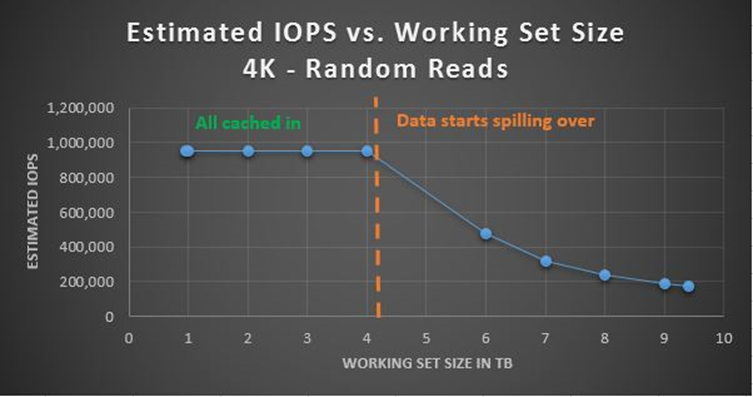
When combining multiple media types, faster media will be used as caching. While it is recommended to use 10% of the capacity for cache, it should be noted, that it is just important to not spill the cache with the production workload, as it will dramatically reduce performance. Therefore all production workload should fit into the Storage Bus Layer Cache (cache devices). The sweet spot (price vs performance) is combination of fast NVMe (mixed use or write intensive) with HDDs. For performance intensive workloads it’s recommended to use all-flash solutions as caching introduces ~20% overhead + less predicable behavior (data can be already destaged…), therefore it is recommended to use All-Flash for SQL workloads.
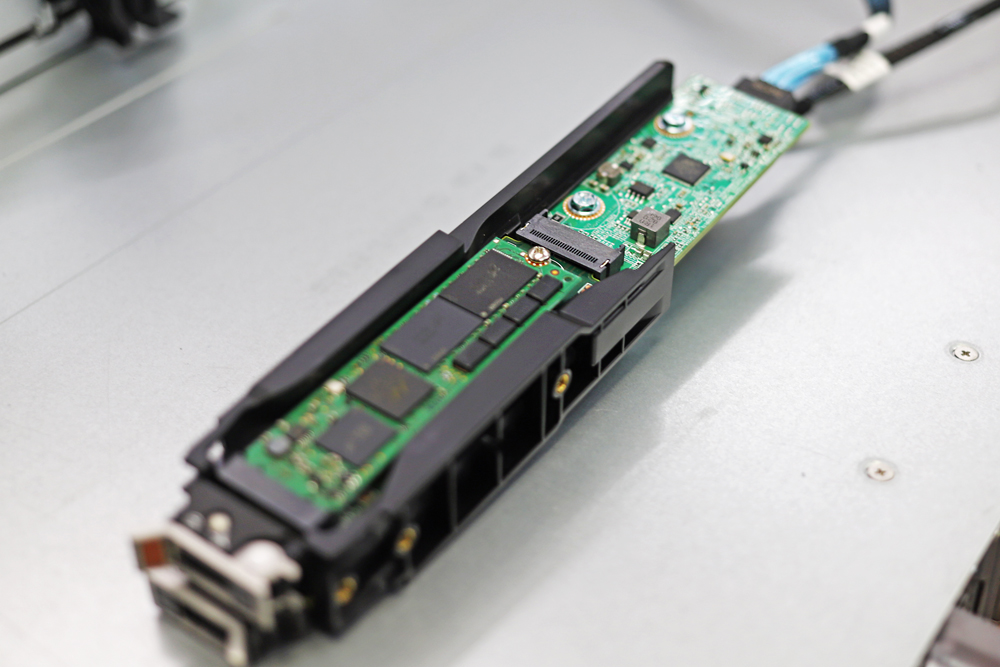
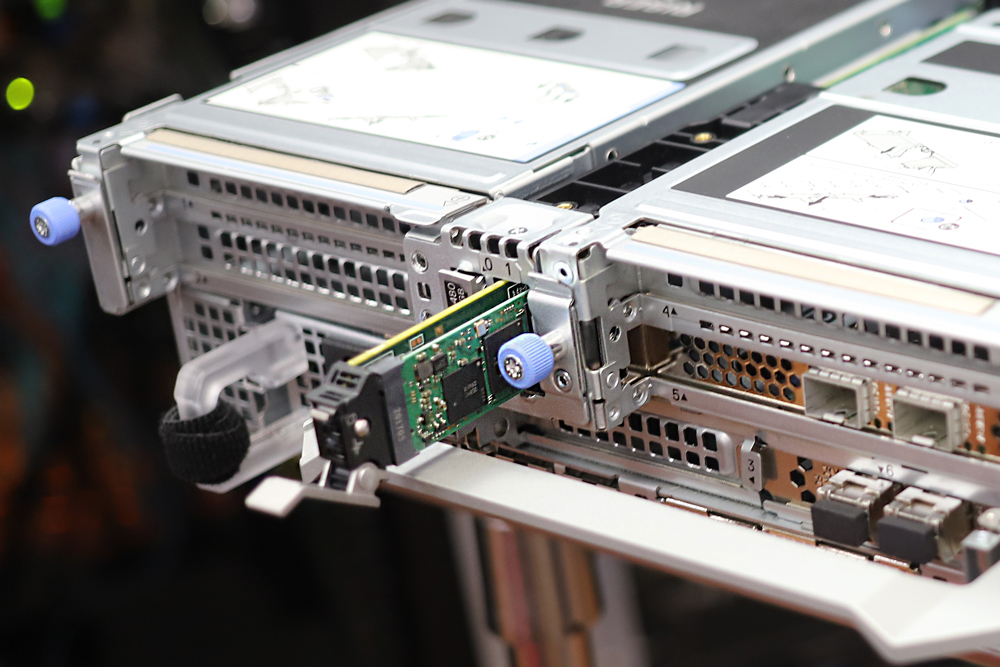
In Dell Servers are BOSS (Boot Optimized Storage Solution) cards used. In essence it card wih 2x m2 2280 NVMe disks connected to PCI-e with configurable non-RAID/RAID 1
Consumer-Grade SSDs
You should avoid any consumer grade SSDs as consumer grade SSDs might contain NAND with higher latency (therefore there can be performance drop after spilling FTL buffer) or because consumer grade SSDs are not power protected (PLP). You can learn more about why consumer-grade SSDs are not good idea in a blog post. Consumer-grade SSDs do also have lower DWPD (Disk Written Per Day). You can learn about DWPD in this blogpost
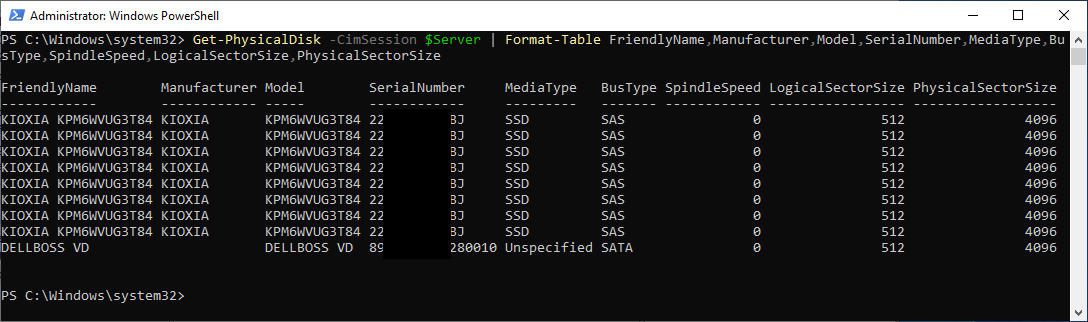
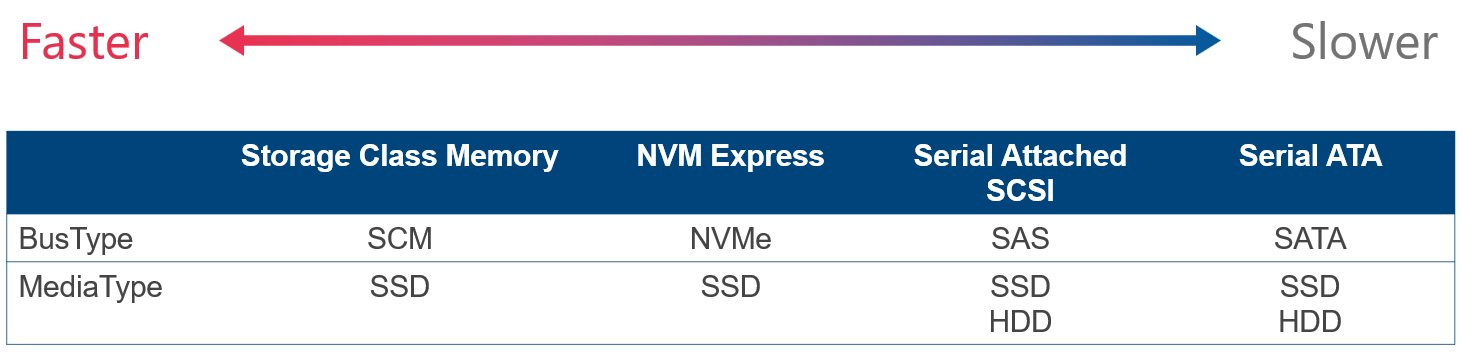
From screenshot you can see, that AX640 BOSS card reports as SATA device with Unspecified Mediatype, while SAS disks are reported as SSDs, with SAS BusType. Let’s deep dive into BusType/MediaType a little bit (see table below)
Storage Spaces requires BusType SATA/SAS/NVMe or SCM. BusType RAID is unsupported.
You can also see Logical Sector Size and Physical Sector size. This refers to Drive Type (4K native vs 512E vs 512).
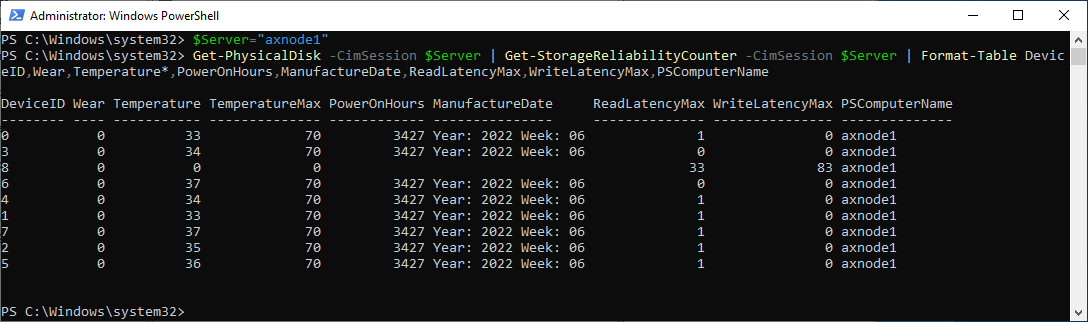
Once disk is added to storage spaces, S.M.A.R.T. attributes can be filtered out. For reading disk status (such as wear level temperatures…) can be get-storagereliability counter used.
PowerEdge branded servers can only be deployed with Azure Local when enabled with Dell Private Cloud.
The Dell Technologies provided operating system golden image for Azure Local instances is for imaging servers prior to deploying an Azure Local instance. This image is based on the Azure Stack HCI OS, with Microsoft customization and Dell Technologies customization. This image includes drivers provided by Dell Technologies.
Azure Local Golden Images for Solution versions 12.2604.1003.* - 12.2609.1003.* with Dell SBE 5.0.2606.*
Use with Azure Local instances running Solution version 12.*.1003.*
Specify Azure Local instance Solution version when running Arc registration using: Invoke-AzStackHciArcInitialization -TargetSolutionVersion [Solution Version]
Solution Builder Extensions (SBE) for Azure Local. Firmware, Driver, and WDAC Supplemental policy for lifecycle management for Azure Local instances running on Dell AX servers.
PowerEdge branded servers are supported with Azure Local only when enabled with Dell Private Cloud.
Important Caveats
AX 17G SBE 5.0.2606.1713 does not contain the NVIDIA ConnectX-6 NIC firmware. This is due to an iDRAC defect that prevents the SBE from updating the NVIDIA ConnectX-6 NIC firmware. The NVIDIA ConnectX-6 NIC firmware in 17G AX servers must be manually updated to version 26.48.1000 for ConnectX-6 LX and version 22.48.1000 for ConnectX-6 DX prior to Azure Local instance creation.
Secure Boot 2023 Certificates must be installed on each instance machine in order for the BIOS version to be upgraded to the versions that are included in this SBE release. The Secure Boot 2023 Certificates are installed as part of installing solution version 12.2603.1002.* or newer, which is a prerequisite for installing these new SBE versions.
New for This Release
SBE 5.0.2606.1713
Added support for PowerEdge R670 and R770 Platforms. PowerEdge branded servers are supported with Azure Local only when enabled with Dell Private Cloud.
Driver and Firmware 2606 Update for 17G platforms.
To install this SBE version, Azure Local instances that are already deployed must be running solution versions 12.*.1003.* or 12.2603.1002.*.
Automated remediation for most common CAU scan failures that result from iDRAC returning invalid data. The SBE firmware CAU plug-in will automatically restart iDRAC when iDRAC returns invalid data.
SBE 5.0.2606.1616
Driver and Firmware 2606 Update for 16G platforms.
NVIDIA ConnectX-6 NIC firmware and driver upgrade.
To install this SBE version, Azure Local instances that are already deployed must be running solution versions 12.*.1003.* or 12.2603.1002.*.
Automated remediation for most common CAU scan failures that result from iDRAC returning invalid data. The SBE firmware CAU plug-in will automatically restart iDRAC when iDRAC returns invalid data.
SBE 5.0.2606.1510
Driver and Firmware 2606 Update for 15G platforms.
NVIDIA ConnectX-6 and ConnectX-5 NIC firmware and driver upgrade.
To install this SBE version, Azure Local instances that are already deployed must be running solution versions 12.*.1003.* or 12.2603.1002.*.
Automated remediation for most common CAU scan failures that result from iDRAC returning invalid data. The SBE firmware CAU plug-in will automatically restart iDRAC when iDRAC returns invalid data.
SBE 5.0.2606.1407
Driver and Firmware 2606 Update for 14G platforms.
NVIDIA ConnectX-5 and ConnectX-4 NIC firmware and driver upgrade.
To install this SBE version, Azure Local instances that are already deployed must be running solution versions 12.*.1003.* or 12.2603.1002.*.
Automated remediation for most common CAU scan failures that result from iDRAC returning invalid data. The SBE firmware CAU plug-in will automatically restart iDRAC when iDRAC returns invalid data.
Prerequisites
Update Firmware and Drivers Prior to Azure Local Instance Deployment
Drivers and firmware need to be installed on the servers that will be the instance members prior to deployment from the Azure Portal or using an ARM Template. This requirement is independent of the installation of the SBE. Machines imaged with Dell provided golden images will include the required Dell provided Out-of-Box drivers, but the firmware versions must still be validated and possibly updated prior to the instance deployment. The most current driver and firmware versions listed in the support matrix are recommended.
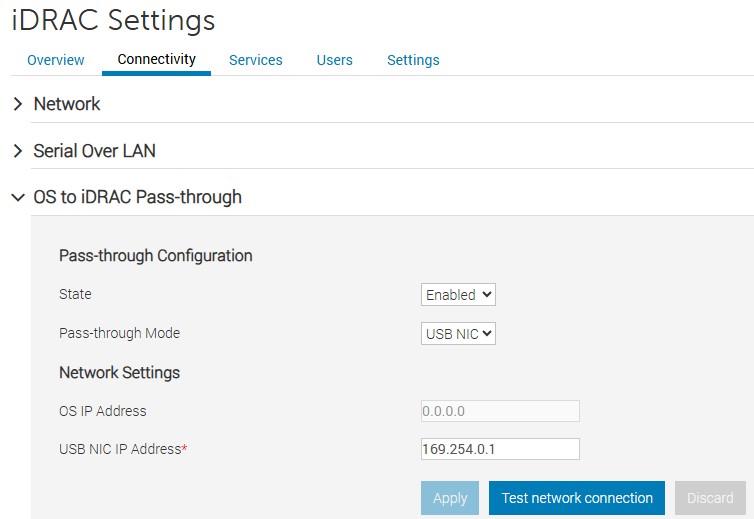
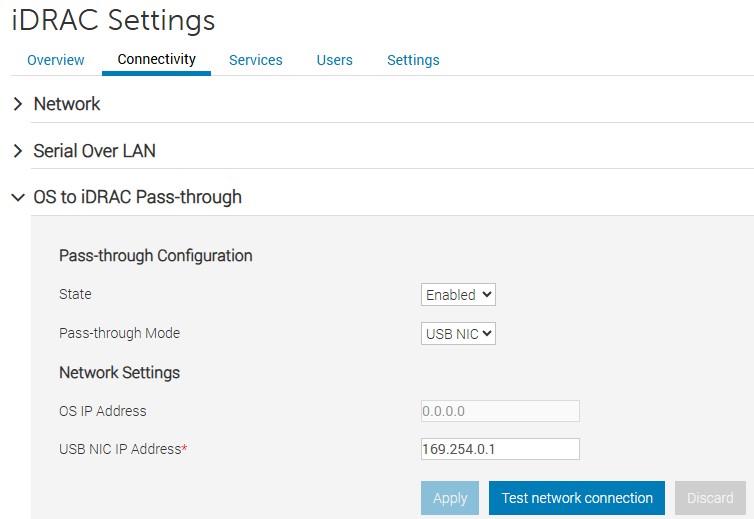
The iDRAC pass-through NIC must be enabled and have an IP address assigned to it. iDRAC pass-through NIC is enabled by default and has an APIPA (Automatic Private IP Addressing) IP address assigned. This IP address must be accessible by the iDRAC NIC Remote NDIS Compatible Device in the host operating system. This is a dedicated link to the host OS and cannot be accessed outside the host OS.
iDRAC access health checks are introduced starting with the December 2024 SBE releases. These health checks verify that the required iDRAC access has been implemented on each server that will be an instance member. The iDRAC access health checks run automatically as part of the standard built-in SBE health checks. These health checks must complete successfully for the SBE installation to proceed. Failure remediation instructions are provided in case the health check fails.
Manual iDRAC Access Verification
The following procedures provide a manual method for verifying the required iDRAC access. The iDRAC access health checks provide automated and more comprehensive verification method.
Example iDRAC Pass-through settings
The iDRAC NIC Remote NDIS Compatible Device in the host operating system is used by the SBE CAU plug-in to update firmware. This NIC must be enabled and have an IP address assigned to it. By default, this NIC is enabled and has an APIPA IP address assigned to it that can access the iDRAC pass-through IP address. DHCP client should not be disabled on this NIC.
This is a dedicated link to iDRAC from the host OS and cannot be accessed outside the host OS.
The IP address can be obtained using the following PowerShell command:
Azure Local instances using Non-Transparent, Unauthenticated Network Proxy
Azure Local instances using non-transparent, unauthenticated network proxy must have the iDRAC pass-through IP address in the network proxy exclusion list. For information on how to configure the non-transparent, unauthenticated network proxy see, Configure proxy settings for Azure Local.
The following example shows how to configure the APIPA IP address range 169.254.0.0/16 to be in the network proxy exclusion list.
Download Connector – Automated download of future SBE release
Overview
Download Connector is a component in the SBE (Solutions Builder Extensions) that automates the downloading of new SBE bundles as they become available for your cluster. Once an SBE that includes the Download Connector is installed on your cluster, manually downloading and importing follow-on SBE version is no longer required. The update service will automate the downloading of the next available SBE for your Azure Local instance in a similar manner to how the download of the solution upgrade is automated. The Download Connector is part of the SBE version 4.1.2505.1501 and newer.
SBE versions that include the Download Connector also include system and update health checks that proactively verify the ability of the Download Connector to access the required remote resource when it comes time to download the next SBE for your cluster. System health checks are run once per day and update health checks are run at the initial phase of the update process.
Firewall Requirements
The SBE Download Connector running in the Azure Local instance needs to periodically connect to the internet resources to download SBE bundles for your cluster. The following outbound connectivity is required.
SBE releases starting with 4.1.2505.1501 and newer include the Download Connector that automates downloading and extracting the SBE.
Note
Manual download and SBE bundle extraction are unnecessary when an SBE with this capability is already installed or partially installed on the Azure Local instance.
Manual Download and Extract
CAUTION
Steps 3 and 4 must be completed to ensure that the latest SBE Discovery manifest is used.
This step is required only when an SBE is not installed in the Azure Local instance (SBE version ‘2.1.0.0’) or the installed SBE is older than version ‘4.1.2505.1501’
SBE bundle zip file has the naming convention Bundle_SBE_Dell_AS-HCI-AX-GenerationNumber_VersionNumber.zip.
Download the SBE bundle zip file for your Dell AX server generation using the download link above. The SBE bundles are specific to the AX 14G platforms, AX 15G platforms, and AX 16G platforms
Extract the three SBE files from the SBE bundle zip file. There are two xml files and one zip file. Example:
Replace the SBE_Discovery_Dell.xml file that was in the SBE bundle zip with the file downloaded in step 3
There are two options for installing the SBE package. The SBE package can be installed as part of instance creation or imported after instance creation is successfully completed. The importing method is also used to update the SBE to a newer version when the currently running SBE does not include Download Connector capability.
Installing SBE as Part of Instance Creation
Starting with June 2025 Dell golden image release, the SBE files are included in the golden image and already placed in the C:\SBE directory. The following 3 steps do not need to be performed.
On each server that will be an instance member, create the following directory: C:\SBE
Copy the three SBE files to the directory C:\SBE on each server that will be an instance member
Proceed to deploying the instance from the Azure Portal or an ARM template
Importing the SBE After Successful Azure Local Instance Creation
Create a directory on a cluster shared volume (CSV) for sideloading the SBE, e.g., C:\ClusterStorage\Infrastructure_1\SBE\SBE-AX-16G-45n0c_4.2.2506.1600
Copy the three extracted SBE files to this directory
Load the SBE files by running the following command with the path to the directory that holds the three extracted SBE files
Verify that the Azure Local instance is in a healthy state and is ready for the SBE installation by running the following commands on one of the Azure Local instance machines:
SBE Installation May Fail with Firmware CAU plug-in CAU scan Error
Description
The SBE installation may fail when the Dell firmware CAU plug-in is running the CAU scan operation to identify server components that require firmware updates. The SBE installation workflow terminates and reports the following error when this condition occurs.
Microsoft.HardwareUpdatePlugin (2) plug-in reported a failure while attempting to scan for applicable updates on node <NodeName>
Additional information reported by the plug-in: (ClusterUpdateException) Encountered Exception while running ScanAsync
Note
HardwareUpdatePlugin (2) refers to the firmware CAU plug-in in the Dell SBE.
Workaround
Identify the failing node name from the error message.
Reboot iDRAC on that node via WebUI by logging in to iDRAC, selecting the menu Maintenance > Diagnostics > Reboot iDRAC.
Note
iDRAC takes a few minutes to reboot. The session to the iDRAC WebUI will drop and automatically re-establish when iDRAC completes the reboot process.
Wait for iDRAC to complete its reboot and verify you can log in.
Restart the SBE installation from Azure Update Manager or from PowerShell by running the following command on one of the Azure Local instance nodes:
The Dell firmware CAU plug-in implements the CAU scan operation to identify components that require firmware updates prior to running the CAU run operation. Azure Local machine components that do not require firmware updates are excluded from the CAU run operation. The firmware CAU plug-in obtains a list of machine components and their firmware versions from iDRAC. This error occurs when iDRAC does not respond correctly to the component inventory request issued by the firmware CAU plug-in.
Partially Installed SBE Version 4.0.0.0 When SBE Is Installed as Part of Cluster Deployment
Description
Get-SolutionUpdateEnvironment reports partially installed SBE when installing the SBE as part of Azure Local instance deployment. SBE version 4.0.0.0 indicates a partially installed Solution Builder Extension (SBE).
Reinstall the same SBE version using the SBE import method or automated download method after Azure Local instance deployment successfully completes.
Background
The SBE driver CAU plug-in expects all drivers and firmware in the SBE payload to be installed on the server during or prior to deployment. However, some of the drivers in the SBE payload may not apply to the server model or components in the server model. Microsoft is aware of this limitation and is working to resolve this issue in a future release.
The partially installed SBE issue can also occur if a component firmware version installed on the server is different than what is in the SBE payload. The SBE cannot update firmware or drivers during Azure Local instance deployment.
SBE installation will not downgrade drivers that have a newer version than the same driver in the SBE payload
The SBE driver CAU plug-in will not attempt to downgrade installed drivers that are higher version than the ones in its payload unless otherwise specified by Dell.
AMD DRTM (Dynamic Root of Trust for Measurement) Driver Fails to Update on AX AMD Platforms When the DRTM Device Was Originally Enabled at Azure Local Instance Deployment Time and Later Disabled
Description
SBE installation fails because the driver CAU plug-in in the SBE is unable to update the AMD DRTM driver to a newer version that is in the SBE payload. The AMD DRTM driver is one of the AMD Chipset drivers in the SBE package. The AMD DRTM driver update fails because the AMD DRTM setting was originally enabled but later disabled.
Workaround
Verify that the AMD DRTM BIOS setting is on. Re-enable the AMD DRTM setting if it is off.
The DRTM option is in the BIOS configuration: System Security -> TPM Advanced Settings -> AMD DRTM
Make sure to suspend and drain the Azure Local cluster node prior to rebooting the node. Make sure that BitLocker protection is disabled for the boot volume on the cluster node before making BIOS configuration changes. Disable BitLocker if it is enabled for the boot volume C:\ prior to rebooting the server for the BIOS changes to take effect. Reenable BitLocker for the boot drive after the server successfully reboots.
Background
AMD DRTM is an advanced security feature that is available on modern AMD CPUs and is used to protect the secure boot enclaves. The AMD DRTM setting is enabled by default on AX servers with AMD CPUs that support the DRTM feature. AMD DRTM should not be disabled.
2.2.1 - Azure Local Support Matrix for 14G-15G (Dell 2603)
NOTE
SBE package 4.2.2512.xxxx and newer will only support Azure Local solution versions 12.*.1001.* or 12.*.1002.* (HCI OS 24H2) and newer.
Dell will support the use of SBE package 4.2.2509.xxxx on Azure Local instances running version 11.* (HCI OS 23H2) until April 2026. Dell recommends that instances running version 11.* be upgraded to 12.* as soon as possible to remain in a supported state.
Supported Platforms
Model
Supported Operating System
AX-640
Windows Server 2022 Datacenter Azure Stack HCI-24H2
AX-740xd
Windows Server 2022 Datacenter Azure Stack HCI-24H2
AX-6515
Windows Server 2022 Datacenter Windows Server 2025 Datacenter Azure Stack HCI-24H2
AX-7525
Windows Server 2022 Datacenter Windows Server 2025 Datacenter Azure Stack HCI-24H2
AX-650
Windows Server 2022 Datacenter Windows Server 2025 Datacenter Azure Stack HCI-24H2
AX-750
Windows Server 2022 Datacenter Windows Server 2025 Datacenter Azure Stack HCI-24H2
2.2.2 - Azure Local Support Matrix for 16G (Dell 2603)
NOTE
SBE package 4.2.2512.xxxx and newer will only support Azure Local solution versions 12.*.1001.* or 12.*.1002.* (HCI OS 24H2) and newer.
Dell will support the use of SBE package 4.2.2509.xxxx on Azure Local instances running version 11.* (HCI OS 23H2) until April 2026. Dell recommends that instances running version 11.* be upgraded to 12.* as soon as possible to remain in a supported state.
Supported Platforms
Model
Supported Operating System
AX-760
Windows Server 2022 Datacenter Windows Server 2025 Datacenter Azure Stack HCI-24H2
AX-660
Windows Server 2025 Datacenter Azure Stack HCI-24H2
2.2.3 - Azure Local Support Matrix for 17G (Dell 2603)
NOTE
SBE package 4.2.2512.xxxx and newer will only support Azure Local solution versions 12.*.1001.* or 12.*.1002.* (HCI OS 24H2) and newer.
Dell will support the use of SBE package 4.2.2509.xxxx on Azure Local instances running version 11.* (HCI OS 23H2) until April 2026. Dell recommends that instances running version 11.* be upgraded to 12.* as soon as possible to remain in a supported state.
Supported Platforms
Model
Supported Operating System
AX-770
Windows Server 2025 Datacenter Azure Stack HCI-24H2
AX-670
Windows Server 2025 Datacenter Azure Stack HCI-24H2
2.2.4 - Azure Local Support Matrix for 45n0c (Dell 2603)
NOTE
SBE package 4.2.2512.xxxx and newer will only support Azure Local solution versions 12.*.1001.* or 12.*.1002.* (HCI OS 24H2) and newer.
Dell will support the use of SBE package 4.2.2509.xxxx on Azure Local instances running version 11.* (HCI OS 23H2) until April 2026. Dell recommends that instances running version 11.* be upgraded to 12.* as soon as possible to remain in a supported state.
Supported Platforms
Model
Supported Operating System
AX-4510c
Windows Server 2022 Datacenter Windows Server 2025 Datacenter Azure Stack HCI-24H2
AX-4520c
Windows Server 2022 Datacenter Windows Server 2025 Datacenter Azure Stack HCI-24H2
SBE package 4.2.2512.xxxx and newer will only support Azure Local solution versions 12.*.1001.* or 12.*.1002.* (HCI OS 24H2) and newer.
Dell will support the use of SBE package 4.2.2509.xxxx on Azure Local instances running version 11.* (HCI OS 23H2) until April 2026. Dell recommends that instances running version 11.* be upgraded to 12.* as soon as possible to remain in a supported state.
The Dell Technologies provided operating system golden image for Azure Local instances is for imaging AX servers prior to deploying an Azure Local instance. This image is based on the Azure Stack HCI OS, with Microsoft customization and Dell Technologies customization. This image includes drivers provided by Dell Technologies.
Azure Local Golden Images for Solution versions 12.2604.1003.* - 12.2609.1003.* with Dell SBE 5.0.2603.*
Use with Azure Local instances running Solution version 12.*.1003.*
Specify Azure Local instance Solution version when running Arc registration using: Invoke-AzStackHciArcInitialization -TargetSolutionVersion [Solution Version]
Use with Azure Local instances running Solution version 12.*.1002.*
Specify Azure Local instance Solution version when running Arc registration using: Invoke-AzStackHciArcInitialization -TargetSolutionVersion [Solution Version]
Solution Builder Extensions (SBE) for Azure Local. Firmware, Driver, and WDAC Supplemental policy for lifecycle management for Azure Local instances running on Dell AX servers.
AX 17G SBE 5.0.2603.1709 does not contain the NVIDIA ConnectX-6 NIC firmware. This is due to an iDRAC defect that prevents the SBE from updating the NVIDIA ConnectX-6 NIC firmware. The NVIDIA ConnectX-6 NIC firmware in 17G AX servers must be manually updated to version 26.48.1000 for ConnectX-6 LX and version 22.48.1000 for ConnectX-6 DX prior to Azure Local instance creation.
Secure Boot 2023 Certificates must be installed on each instance machine in order for the BIOS version to be upgraded to the versions that are included in this SBE release. The Secure Boot 2023 Certificates are installed as part of installing Solution version 12.2603.1002.* or newer, which is a prerequisite for installing these new SBE versions.
NVIDIA ConnectX NIC resets have been observed by customers under certain workloads. Affected driver version ‘25.1.26647.0’ and corresponding firmware was introduced in the SBE ‘4.2.2506.n’. SBE ‘4.2.2509.n’ and ‘4.2.2512.n’ will downgrade the NVIDIA ConnectX driver to version ‘24.4.26429.0’ and firmware versions ‘26.41.10.00’, ‘22.41.10.00’, and ‘14.32.20.04’ when installing SBE ‘5.0.2603.1641’, ‘5.0.2603.1522’, or ‘5.0.2603.1407’. Manually downgrading the firmware is no longer required. For reference, see KB000376360.
Dell Micron 7450 and 7500 NVMe SSDs occasionally enter a panic state. For details and instructions, see KB000368482. From the SBE table above, find the version relevant to your product and install the SBE with updated firmware that resolves the defect for the Micron 7450 and 7500 drives.
New for This Release
SBE 5.2603.1709
New for AX-670 and AX-770 Platforms
Driver and Firmware 2603 Update
To install this SBE version, Azure Local instances that are already deployed must be running solution versions 12.*.1003.* and 12.*.1002.*
Added automated capability for downgrading NVIDIA ConnectX-6 NIC firmware if necessary
To install this SBE version, Azure Local instances that are already deployed must be running solution versions 12.*.1003.* and 12.2603.1002.*
Prerequisites
Update Firmware and Drivers Prior to Azure Local Instance Deployment
Drivers and firmware need to be installed on the servers that will be the instance members prior to deployment from the Azure Portal or using an ARM Template. This requirement is independent of the installation of the SBE. Machines imaged with Dell provided golden images will include the required Dell provided Out-of-Box drivers, but the firmware versions must still be validated and possibly updated prior to the instance deployment. The most current driver and firmware versions listed in the support matrix are recommended.
The iDRAC pass-through NIC must be enabled and have an IP address assigned to it. iDRAC pass-through NIC is enabled by default and has an APIPA (Automatic Private IP Addressing) IP address assigned. This IP address must be accessible by the iDRAC NIC Remote NDIS Compatible Device in the host operating system. This is a dedicated link to the host OS and cannot be accessed outside the host OS.
iDRAC access health checks are introduced starting with the December 2024 SBE releases. These health checks verify that the required iDRAC access has been implemented on each server that will be an instance member. The iDRAC access health checks run automatically as part of the standard built-in SBE health checks. These health checks must complete successfully for the SBE installation to proceed. Failure remediation instructions are provided in case the health check fails.
Manual iDRAC Access Verification
The following procedures provide a manual method for verifying the required iDRAC access. The iDRAC access health checks provide automated and more comprehensive verification method.
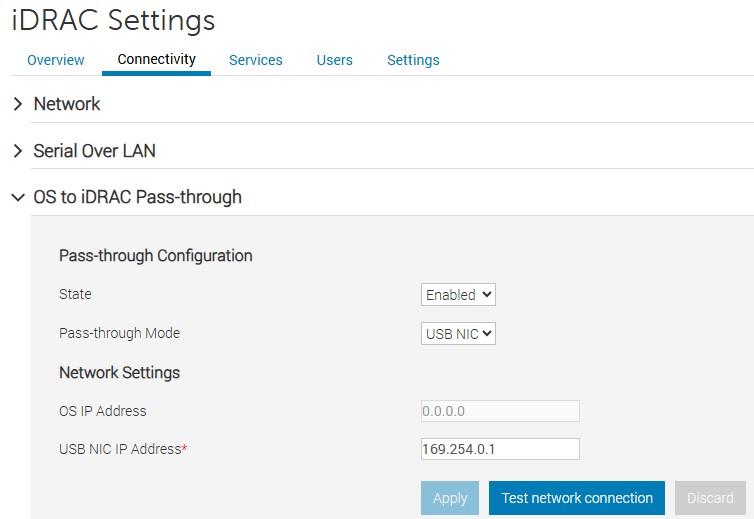
Example iDRAC Pass-through settings
The iDRAC NIC Remote NDIS Compatible Device in the host operating system is used by the SBE CAU plug-in to update firmware. This NIC must be enabled and have an IP address assigned to it. By default, this NIC is enabled and has an APIPA IP address assigned to it that can access the iDRAC pass-through IP address. DHCP client should not be disabled on this NIC.
This is a dedicated link to iDRAC from the host OS and cannot be accessed outside the host OS.
The IP address can be obtained using the following PowerShell command:
Azure Local instances using Non-Transparent, Unauthenticated Network Proxy
Azure Local instances using non-transparent, unauthenticated network proxy must have the iDRAC pass-through IP address in the network proxy exclusion list. For information on how to configure the non-transparent, unauthenticated network proxy see, Configure proxy settings for Azure Local.
The following example shows how to configure the APIPA IP address range 169.254.0.0/16 to be in the network proxy exclusion list.
Download Connector – Automated download of future SBE release
Overview
Download Connector is a component in the SBE (Solutions Builder Extensions) that automates the downloading of new SBE bundles as they become available for your cluster. Once an SBE that includes the Download Connector is installed on your cluster, manually downloading and importing follow-on SBE version is no longer required. The update service will automate the downloading of the next available SBE for your Azure Local instance in a similar manner to how the download of the solution upgrade is automated. The Download Connector is part of the SBE version 4.1.2505.1501 and newer.
SBE versions that include the Download Connector also include system and update health checks that proactively verify the ability of the Download Connector to access the required remote resource when it comes time to download the next SBE for your cluster. System health checks are run once per day and update health checks are run at the initial phase of the update process.
Firewall Requirements
The SBE Download Connector running in the Azure Local instance needs to periodically connect to the internet resources to download SBE bundles for your cluster. The following outbound connectivity is required.
SBE releases starting with 4.1.2505.1501 and newer include the Download Connector that automates downloading and extracting the SBE.
Note
Manual download and SBE bundle extraction are unnecessary when an SBE with this capability is already installed or partially installed on the Azure Local instance.
Manual Download and Extract
CAUTION
Steps 3 and 4 must be completed to ensure that the latest SBE Discovery manifest is used.
This step is required only when an SBE is not installed in the Azure Local instance (SBE version ‘2.1.0.0’) or the installed SBE is older than version ‘4.1.2505.1501’
SBE bundle zip file has the naming convention Bundle_SBE_Dell_AS-HCI-AX-GenerationNumber_VersionNumber.zip.
Download the SBE bundle zip file for your Dell AX server generation using the download link above. The SBE bundles are specific to the AX 14G platforms, AX 15G platforms, and AX 16G platforms
Extract the three SBE files from the SBE bundle zip file. There are two xml files and one zip file. Example:
Replace the SBE_Discovery_Dell.xml file that was in the SBE bundle zip with the file downloaded in step 3
There are two options for installing the SBE package. The SBE package can be installed as part of instance creation or imported after instance creation is successfully completed. The importing method is also used to update the SBE to a newer version when the currently running SBE does not include Download Connector capability.
Installing SBE as Part of Instance Creation
Starting with June 2025 Dell golden image release, the SBE files are included in the golden image and already placed in the C:\SBE directory. The following 3 steps do not need to be performed.
On each server that will be an instance member, create the following directory: C:\SBE
Copy the three SBE files to the directory C:\SBE on each server that will be an instance member
Proceed to deploying the instance from the Azure Portal or an ARM template
Importing the SBE After Successful Azure Local Instance Creation
Create a directory on a cluster shared volume (CSV) for sideloading the SBE, e.g., C:\ClusterStorage\Infrastructure_1\SBE\SBE-AX-16G-45n0c_4.2.2506.1600
Copy the three extracted SBE files to this directory
Load the SBE files by running the following command with the path to the directory that holds the three extracted SBE files
Verify that the Azure Local instance is in a healthy state and is ready for the SBE installation by running the following commands on one of the Azure Local instance machines:
SBE Installation May Fail with Firmware CAU Plug-in CAU Scan Error
Description
The SBE installation may fail when the Dell firmware CAU plug-in is running the CAU scan operation to identify server components that require firmware updates. The SBE installation workflow terminates and reports the following error when this condition occurs.
Microsoft.HardwareUpdatePlugin (2) plug-in reported a failure while attempting to scan for applicable updates on node <NodeName>
Additional information reported by the plug-in: (ClusterUpdateException) Encountered Exception while running ScanAsync
Note
HardwareUpdatePlugin (2) refers to the firmware CAU plug-in in the Dell SBE.
Workaround
Identify the failing node name from the error message.
Reboot iDRAC on that node via WebUI by logging in to iDRAC, selecting the menu Maintenance > Diagnostics > Reboot iDRAC.
Note
iDRAC takes a few minutes to reboot. The session to the iDRAC WebUI will drop and automatically re-establish when iDRAC completes the reboot process.
Wait for iDRAC to complete its reboot and verify you can log in.
Restart the SBE installation from Azure Update Manager or from PowerShell by running the following command on one of the Azure Local instance nodes:
The Dell firmware CAU plug-in implements the CAU scan operation to identify components that require firmware updates prior to running the CAU run operation. Azure Local machine components that do not require firmware updates are excluded from the CAU run operation. The firmware CAU plug-in obtains a list of machine components and their firmware versions from iDRAC. This error occurs when iDRAC does not respond correctly to the component inventory request issued by the firmware CAU plug-in.
Partially Installed SBE Version 4.0.0.0 When SBE Is Installed as Part of Cluster Deployment
Description
Get-SolutionUpdateEnvironment reports partially installed SBE when installing the SBE as part of Azure Local instance deployment. SBE version 4.0.0.0 indicates a partially installed Solution Builder Extension (SBE).
Reinstall the same SBE version using the SBE import method or automated download method after Azure Local instance deployment successfully completes.
Background
The SBE driver CAU plug-in expects all drivers and firmware in the SBE payload to be installed on the server during or prior to deployment. However, some of the drivers in the SBE payload may not apply to the server model or components in the server model. Microsoft is aware of this limitation and is working to resolve this issue in a future release.
The partially installed SBE issue can also occur if a component firmware version installed on the server is different than what is in the SBE payload. The SBE cannot update firmware or drivers during Azure Local instance deployment.
SBE installation will not downgrade drivers that have a newer version than the same driver in the SBE payload
The SBE driver CAU plug-in will not attempt to downgrade installed drivers that are higher version than the ones in its payload unless otherwise specified by Dell.
AMD DRTM (Dynamic Root of Trust for Measurement) Driver Fails to Update on AX AMD Platforms When the DRTM Device Was Originally Enabled at Azure Local Instance Deployment Time and Later Disabled
Description
SBE installation fails because the driver CAU plug-in in the SBE is unable to update the AMD DRTM driver to a newer version that is in the SBE payload. The AMD DRTM driver is one of the AMD Chipset drivers in the SBE package. The AMD DRTM driver update fails because the AMD DRTM setting was originally enabled but later disabled.
Workaround
Verify that the AMD DRTM BIOS setting is on. Re-enable the AMD DRTM setting if it is off.
The DRTM option is in the BIOS configuration: System Security -> TPM Advanced Settings -> AMD DRTM
Make sure to suspend and drain the Azure Local cluster node prior to rebooting the node. Make sure that BitLocker protection is disabled for the boot volume on the cluster node before making BIOS configuration changes. Disable BitLocker if it is enabled for the boot volume C:\ prior to rebooting the server for the BIOS changes to take effect. Reenable BitLocker for the boot drive after the server successfully reboots.
Background
AMD DRTM is an advanced security feature that is available on modern AMD CPUs and is used to protect the secure boot enclaves. The AMD DRTM setting is enabled by default on AX servers with AMD CPUs that support the DRTM feature. AMD DRTM should not be disabled.
2.3.1 - Azure Local Support Matrix for 14G-15G (Dell 2512)
NOTE
SBE package 4.2.2512.xxxx and newer will only support Azure Local solution versions 12.*.1001.* or 12.*.1002.* (HCI OS 24H2) and newer.
Dell will support the use of SBE package 4.2.2509.xxxx on Azure Local instances running version 11.* (HCI OS 23H2) until April 2026. Dell recommends that instances running version 11.* be upgraded to 12.* as soon as possible to remain in a supported state.
Supported Platforms
Model
Supported Operating System
AX-640
Windows Server 2022 Datacenter Azure Stack HCI-24H2
AX-740xd
Windows Server 2022 Datacenter Azure Stack HCI-24H2
AX-6515
Windows Server 2022 Datacenter Windows Server 2025 Datacenter Azure Stack HCI-24H2
AX-7525
Windows Server 2022 Datacenter Windows Server 2025 Datacenter Azure Stack HCI-24H2
AX-650
Windows Server 2022 Datacenter Windows Server 2025 Datacenter Azure Stack HCI-24H2
AX-750
Windows Server 2022 Datacenter Windows Server 2025 Datacenter Azure Stack HCI-24H2
2.3.2 - Azure Local Support Matrix for 16G (Dell 2512)
NOTE
SBE package 4.2.2512.xxxx and newer will only support Azure Local solution versions 12.*.1001.* or 12.*.1002.* (HCI OS 24H2) and newer.
Dell will support the use of SBE package 4.2.2509.xxxx on Azure Local instances running version 11.* (HCI OS 23H2) until April 2026. Dell recommends that instances running version 11.* be upgraded to 12.* as soon as possible to remain in a supported state.
Supported Platforms
Model
Supported Operating System
AX-760
Windows Server 2022 Datacenter Windows Server 2025 Datacenter Azure Stack HCI-24H2
AX-660
Windows Server 2025 Datacenter Azure Stack HCI-24H2
2.3.3 - Azure Local Support Matrix for 45n0c (Dell 2512)
NOTE
SBE package 4.2.2512.xxxx and newer will only support Azure Local solution versions 12.*.1001.* or 12.*.1002.* (HCI OS 24H2) and newer.
Dell will support the use of SBE package 4.2.2509.xxxx on Azure Local instances running version 11.* (HCI OS 23H2) until April 2026. Dell recommends that instances running version 11.* be upgraded to 12.* as soon as possible to remain in a supported state.
Supported Platforms
Model
Supported Operating System
AX-4510c
Windows Server 2022 Datacenter Windows Server 2025 Datacenter Azure Stack HCI-24H2
AX-4520c
Windows Server 2022 Datacenter Windows Server 2025 Datacenter Azure Stack HCI-24H2
SBE package 4.2.2512.xxxx and newer will only support Azure Local solution versions 12.*.1001.* or 12.*.1002.* (HCI OS 24H2) and newer.
Dell will support the use of SBE package 4.2.2509.xxxx on Azure Local instances running version 11.* (HCI OS 23H2) until April 2026. Dell recommends that instances running version 11.* be upgraded to 12.* as soon as possible to remain in a supported state.
The Dell Technologies provided operating system golden image for Azure Local instances is for imaging AX servers prior to deploying an Azure Local instance. This image is based on the Azure Stack HCI OS, with Microsoft customization and Dell Technologies customization. This image includes drivers provided by Dell Technologies.
Azure Local Golden Images for Solution versions 12.2510.1002.* - 12.2603.1002.* with Dell SBE 4.2.2512.*
Use with Azure Local instances running Solution version 12.*.1002.*
Specify Azure Local instance Solution version when running Arc registration using: Invoke-AzStackHciArcInitialization -TargetSolutionVersion [Solution Version]
Solution Builder Extensions (SBE) for Azure Local. Firmware, Driver, and WDAC Supplemental policy for lifecycle management for Azure Local instances running on Dell AX servers.
NVIDIA ConnectX NIC resets have been observed by customers under certain workloads. Affected driver version 25.1.26647.0 and corresponding firmware was introduced in the SBE 4.2.2506.n. SBE 4.2.2509.n and 4.2.2512.n will downgrade the NVIDIA ConnectX driver to version 24.4.26429.0, but the ConnectX firmware must be manually downgraded prior to installing SBE 4.2.2512.n.
For details and instructions, see KB000376360.
Dell Micron 7450 and 7500 NVMe SSDs occasionally enter a panic state. For details and instructions, see KB000368482. From the SBE table above, find the version relevant to your product and install the SBE with updated firmware that resolves the defect for the Micron 7450 and 7500 drives.
SBE versions 4.2.2512.1616 and 4.2.2512.1514 include the same BIOS version as previously released SBE versions 4.2.2509.1625 and 4.1.2509.1516 for the 16G, 45n0c, AX-650, and AX-750. New Azure Local instance deployments may have newer BIOS versions as listed in the Dell 2512 support matrix. The installation of SBE 4.2.2512.n will not downgrade the BIOS version in this case. The supported BIOS versions are listed in the Dell 2512 support matrix.
New for This Release
SBE 4.2.2512.1616
Driver and Firmware 2512 Update
Added server component health checks
Added checks for downloading the latest SBE discovery manifest during updates that use automated SBE download
Added support for APEX MC branded nodes
To install this SBE version, Azure Local instances that are already deployed must be running solution version 12.*.1001.* or 12.*.1002.*
SBE 4.2.2512.1514
Driver and Firmware 2512 Update
Added server component health checks
Added checks for downloading the latest SBE discovery manifest during updates that use automated SBE download
To install this SBE version, Azure Local instances that are already deployed must be running solution version 12.*.1001.* or 12.*.1002.*
SBE 4.2.2512.1403
Driver and Firmware 2512 Update
Added server component health checks
Added checks for downloading the latest SBE discovery manifest during updates that use automated SBE download
To install this SBE version, Azure Local instances that are already deployed must be running solution version 12.*.1001.* or 12.*.1002.*
Prerequisites
Update Firmware and Drivers Prior to Azure Local Instance Deployment
Drivers and firmware need to be installed on the servers that will be the instance members prior to deployment from the Azure Portal or using an ARM Template. This requirement is independent of the installation of the SBE. The machines imaged with Dell provided golden image will include the required Dell provided Out-of-Box drivers, but the firmware versions must still be validated and possibly updated prior to the instance deployment. The most current driver and firmware versions listed in the support matrix are recommended.
The iDRAC pass-through NIC must be enabled and have an IP address assigned to it. iDRAC pass-through NIC is enabled by default and has an APIPA (Automatic Private IP Addressing) IP address assigned. This IP address must be accessible by the iDRAC NIC Remote NDIS Compatible Device in the host operating system. This is a dedicated link to the host OS and cannot be accessed outside the host OS.
iDRAC access health checks are introduced starting with the December 2024 SBE releases. These health checks verify that the required iDRAC access has been implemented on each server that will be an instance member. The iDRAC access health checks run automatically as part of the standard built-in SBE health checks. These health checks must complete successfully for the SBE installation to proceed. Failure remediation instructions are provided in case the health check fails.
Manual iDRAC Access Verification
The following procedures provide a manual method for verifying the required iDRAC access. The iDRAC access health checks provide automated and more comprehensive verification method.
Example iDRAC Pass-through settings
The iDRAC NIC Remote NDIS Compatible Device in the host operating system is used by the SBE CAU plug-in to update firmware. This NIC must be enabled and have an IP address assigned to it. By default, this NIC is enabled and has an APIPA IP address assigned to it that can access the iDRAC pass-through IP address. DHCP client should not be disabled on this NIC.
This is a dedicated link to iDRAC from the host OS and cannot be accessed outside the host OS.
The IP address can be obtained using the following PowerShell command:
Azure Local instances using Non-Transparent, Unauthenticated Network Proxy
Azure Local instances using non-transparent, unauthenticated network proxy must have the iDRAC pass-through IP address in the network proxy exclusion list. For information on how to configure the non-transparent, unauthenticated network proxy see, Configure proxy settings for Azure Local.
The following example shows how to configure the APIPA IP address range 169.254.0.0/16 to be in the network proxy exclusion list.
Download Connector – Automated download of future SBE release
Overview
Download Connector is a component in the SBE (Solutions Builder Extensions) that automates the downloading of new SBE bundles as they become available for your cluster. Once an SBE that includes the Download Connector is installed on your cluster, manually downloading and importing follow-on SBE version is no longer required. The update service will automate the downloading of the next available SBE for your Azure Local instance in a similar manner to how the download of the solution upgrade is automated. The Download Connector is part of the SBE version 4.1.2505.1501 and newer.
SBE versions that include the Download Connector also include system and update health checks that proactively verify the ability of the Download Connector to access the required remote resource when it comes time to download the next SBE for your cluster. System health checks are run once per day and update health checks are run at the initial phase of the update process.
Firewall Requirements
The SBE Download Connector running in the Azure Local instance needs to periodically connect to the internet resources to download SBE bundles for your cluster. The following outbound connectivity is required.
Steps 3 and 4 must be completed to ensure that the latest SBE Discovery manifest is used.
SBE bundle zip file has the naming convention Bundle_SBE_Dell_AS-HCI-AX-GenerationNumber_VersionNumber.zip.
Download the SBE bundle zip file for your Dell AX server generation using the download link above. The SBE bundles are specific to the AX 14G platforms, AX 15G platforms, and AX 16G platforms
Extract the three SBE files from the SBE bundle zip file. There are two xml files and one zip file. Example:
Replace the SBE_Discovery_Dell.xml file that was in the SBE bundle zip with the file downloaded in step 3
There are two options for installing the SBE package. The SBE package can be installed as part of instance creation or imported after instance creation is successfully completed. The importing method is also used to update the SBE to a newer version when the currently running SBE does not include Download Connector capability.
Automated Download and Extraction
SBE release starting with 4.1.2505.1501 and newer include the Download Connector that automates downloading and extracting the SBE. Manual download and SBE bundle extraction are unnecessary when an SBE with this capability is already installed on the Azure Local instance.
Installing SBE as Part of Instance Creation
Starting with June 2025 Dell golden image release, the SBE files are included in the golden image and already placed in the C:\SBE directory. The following 3 steps do not need to be performed.
On each server that will be an instance member, create the following directory: C:\SBE
Copy the three SBE files to the directory C:\SBE on each server that will be an instance member
Proceed to deploying the instance from the Azure Portal or an ARM template
Importing the SBE After Successful Azure Local Instance Creation
Create a directory on a cluster shared volume (CSV) for sideloading the SBE, e.g., C:\ClusterStorage\Infrastructure_1\SBE\SBE-AX-16G-45n0c_4.2.2506.1600
Copy the three extracted SBE files to this directory
Load the SBE files by running the following command with the path to the directory that holds the three extracted SBE files
Verify that the Azure Local instance is in a healthy state and is ready for the SBE installation by running the following commands on one of the Azure Local instance machines:
SBE Installation May Fail With Driver CAU Plug-In Error When Attempting to Delete NVIDIA ConnectX Driver That Is Not Installed
Description
The failure occurs in the driver CAU plug-in when driver downgrade option is specified for a given driver and the driver is not found in the driver store. This failure occurs in the following conditions:
Cluster nodes were not imaged using Dell provided Azure Local golden image
NVIDIA ConnectX NIC is not installed in the cluster nodes
A previous version of an AX SBE is not installed
Workaround
Run the following script on each instance machine after completing step 5 “Verify that the Azure Local instance is in a healthy state and is ready for the SBE installation” in the Importing the SBE After Successful Azure Local Instance Creation section or when the failure is encountered during the SBE installation.
#Run this script on each node in the cluster.

$ConnectXDriverFileName = "mlx5.inf"

$InstalledConnectXDriver = Get-WindowsDriver -Online | Where-Object -Property OriginalFileName -IMatch $ConnectXDriverFileName

if (-not $InstalledConnectXDriver) {

    Write-Output "Out-of-Box NVIDIA ConnectX driver not found on node: $($env:COMPUTERNAME)"
    Write-Output "Checking SBE installation status on cluster: $((Get-Cluster).Name)"

    $SBEWithPackagePaths = Get-SolutionUpdate | Where-Object { ($_.PackageType -eq "SBE") -and ($_.PackagePath -ne $null) -and ($_.PackagePath -notlike "https*") }

    if ($SBEWithPackagePaths) {

        $SBEPackagePath = ($SBEWithPackagePaths | Select-Object -First 1).PackagePath

        $MlxDriverInfBaseFilePath = Join-Path -Path $SBEPackagePath -ChildPath "DriversGE\Network\Mellanox"

        $MlxDriverInfFilePath = Get-ChildItem -Path $MlxDriverInfBaseFilePath -Filter $ConnectXDriverFileName -Recurse

        Write-Output "SBE payload NVIDIA ConnectX driver file path: $($MlxDriverInfFilePath.FullName)"

        if (Test-Path -Path $MlxDriverInfFilePath.FullName) {

            Write-Output "Importing NVIDIA ConnectX driver..."

            pnputil.exe /add-driver $MlxDriverInfFilePath.FullName /install

            if (Get-WindowsDriver -Online | Where-Object -Property OriginalFileName -IMatch $ConnectXDriverFileName) {

                Write-Output "NVIDIA ConnectX driver has been added to the driver store"

            } else {

                Write-Output "NVIDIA ConnectX driver is still not found in the driver store on node: $($env:COMPUTERNAME)"

            }

        } else {

            Write-Output "Failed to resolve path: $($MlxDriverInfFilePath.FullName)"

        }

    } else {

        Write-Output "SBE package path not found"

    }

} else {

    Write-Output "Found NVIDIA ConnectX driver version: $($InstalledConnectXDriver.Version) in the driver store"
    Write-Output "No further action is required on this node"

}
Background
This SBE installation failure is resolved in the Azure Local Solution version 12.2512.1002.* and newer.
The driver CAU plug-in driver downgrade option is used in special cases. Currently, it is only used in the case of NVIDIA ConnectX NIC driver.
Partially Installed SBE Version 4.0.0.0 When SBE Is Installed as Part of Cluster Deployment
Description
Get-SolutionUpdateEnvironment reports partially installed SBE when installing the SBE as part of Azure Local instance deployment. SBE version 4.0.0.0 indicates a partially installed Solution Builder Extension (SBE).
Reinstall the same SBE version using the SBE import method or automated download method after Azure Local instance deployment successfully completes.
Background
The SBE driver CAU plug-in expects all drivers and firmware in the SBE payload to be installed on the server during or prior to deployment. However, some of the drivers in the SBE payload may not apply to the server model or components in the server model. Microsoft is aware of this limitation and is working to resolve this issue in a future release.
The partially installed SBE issue, can also occur if a component firmware version installed on the server is different than what is in the SBE payload. The SBE cannot update firmware or drivers during Azure Local instance deployment.
SBE installation will not downgrade drivers that have a newer version than the same driver in the SBE payload
The SBE driver CAU plug-in will not attempt to downgrade installed drivers that are higher version than the ones in its payload unless otherwise specified by Dell.
AMD DRTM (Dynamic Root of Trust for Measurement) Driver Fails to Update on AX AMD Platforms When the DRTM Device Was Originally Enabled at Azure Local Instance Deployment Time and Later Disabled
Description
SBE installation fails because the driver CAU plug-in in the SBE is unable to update the AMD DRTM driver to a newer version that is in the SBE payload. The AMD DRTM driver is one of the AMD Chipset drivers in the SBE package. The AMD DRTM driver update fails because the AMD DRTM setting was originally enabled but later disabled.
Workaround
Verify that the AMD DRTM BIOS setting is on. Turn back on the AMD DRTM setting if it is off.
The DRTM option is in the BIOS configuration: System Security -> TPM Advanced Settings -> AMD DRTM
Make sure to suspend and drain the Azure Local cluster node prior to rebooting the node. Make sure that BitLocker protection is disabled for the boot volume on the cluster node before making BIOS configuration changes. Disable BitLocker if it is enabled for the boot volume C:\ prior to rebooting the server for the BIOS changes to take effect. Reenable BitLocker for the boot drive after the server successfully reboots.
Background
AMD DRTM is an advanced security feature that is available on modern AMD CPUs and is used to protect the secure boot enclaves. The AMD DRTM setting is enabled by default on AX servers with AMD CPUs that support the DRTM feature. AMD DRTM should not be disabled.
2.4.1 - Azure Stack HCI Firmware and Driver Matrix for Legacy Windows Server Operating Systems (Windows Server 2016)
Introduction
This matrix is for Windows Server operating systems that have exited Microsoft mainstream support. This Windows Server operating system is no longer being validated by Dell for use with hyperconverged cluster deployments. The table in the below link is a snapshot of the last firmware and driver versions that were validated by Dell engineering for use with this legacy Windows Server version.
Customers that are still running this Windows Server version for their hyperconverged cluster deployments are encouraged to perform an in-place upgrade to the Windows Server 2022 operating system per instructions at the following link.