Overview
Solution Builder Extensions (SBE) for Azure Local. Firmware, Driver, and WDAC Supplemental policy for lifecycle management for Azure Local instances running on Dell AX servers.
Important Caveats
-
AX 17G SBE 5.0.2603.1709 does not contain the NVIDIA ConnectX-6 NIC firmware. This is due to an iDRAC defect that prevents the SBE from updating the NVIDIA ConnectX-6 NIC firmware. The NVIDIA ConnectX-6 NIC firmware in 17G AX servers must be manually updated to version 26.48.1000 for ConnectX-6 LX and version 22.48.1000 for ConnectX-6 DX prior to Azure Local instance creation.
-
Secure Boot 2023 Certificates must be installed on each instance machine in order for the BIOS version to be upgraded to the versions that are included in this SBE release. The Secure Boot 2023 Certificates are installed as part of installing Solution version 12.2603.1002.*, which is a prerequisite for installing these new SBE versions.
-
NVIDIA ConnectX NIC resets have been observed by customers under certain workloads. Affected driver version ‘25.1.26647.0’ and corresponding firmware was introduced in the SBE ‘4.2.2506.n’. SBE ‘4.2.2509.n’ and ‘4.2.2512.n’ will downgrade the NVIDIA ConnectX driver to version ‘24.4.26429.0’ and firmware versions ‘26.41.10.00’, ‘22.41.10.00’, and ‘14.32.20.04’ when installing SBE ‘5.0.2603.1641’, ‘5.0.2603.1522’, or ‘5.0.2603.1407’. Manually downgrading the firmware is no longer required. For reference, see KB000376360.
-
Dell Micron 7450 and 7500 NVMe SSDs occasionally enter a panic state. For details and instructions, see KB000368482. From the SBE table above, find the version relevant to your product and install the SBE with updated firmware that resolves the defect for the Micron 7450 and 7500 drives.
New for This Release
SBE 5.2603.1709
- New for AX-670 and AX-770 Platforms
- Driver and Firmware 2603 Update
- To install this SBE version, Azure Local instances that are already deployed must be running solution version
12.*.1002.*
SBE 5.2603.1641
- Driver and Firmware 2603 Update
- Added Secure Boot 2023 certificate prerequisite check prior to BIOS update
- Added automated capability for downgrading NVIDIA ConnectX-6 NIC firmware if necessary
- To install this SBE version, Azure Local instances that are already deployed must be running solution version
12.2603.1002.*
SBE 5.2603.1522
- Driver and Firmware 2603 Update
- Added Secure Boot 2023 certificate prerequisite check prior to BIOS update
- Added automated capability for downgrading NVIDIA ConnectX-6 NIC firmware if necessary
- To install this SBE version, Azure Local instances that are already deployed must be running solution version
12.2603.1002.*
SBE 5.2603.1407
- Driver and Firmware 2603 Update
- Added Secure Boot 2023 certificate prerequisite check prior to BIOS update
- Added automated capability for downgrading NVIDIA ConnectX-6 NIC firmware if necessary
- To install this SBE version, Azure Local instances that are already deployed must be running solution version
12.2603.1002.*
Prerequisites
Update Firmware and Drivers Prior to Azure Local Instance Deployment
Drivers and firmware need to be installed on the servers that will be the instance members prior to deployment from the Azure Portal or using an ARM Template. This requirement is independent of the installation of the SBE. Machines imaged with Dell provided golden images will include the required Dell provided Out-of-Box drivers, but the firmware versions must still be validated and possibly updated prior to the instance deployment. The most current driver and firmware versions listed in the support matrix are recommended.
The Azure Local support matrix for Dell AX servers can be found here, Support Matrix | Solutions for Microsoft Azure.
iDRAC Access from Host OS
The iDRAC pass-through NIC must be enabled and have an IP address assigned to it. iDRAC pass-through NIC is enabled by default and has an APIPA (Automatic Private IP Addressing) IP address assigned. This IP address must be accessible by the iDRAC NIC Remote NDIS Compatible Device in the host operating system. This is a dedicated link to the host OS and cannot be accessed outside the host OS.
iDRAC access health checks are introduced starting with the December 2024 SBE releases. These health checks verify that the required iDRAC access has been implemented on each server that will be an instance member. The iDRAC access health checks run automatically as part of the standard built-in SBE health checks. These health checks must complete successfully for the SBE installation to proceed. Failure remediation instructions are provided in case the health check fails.
Manual iDRAC Access Verification
The following procedures provide a manual method for verifying the required iDRAC access. The iDRAC access health checks provide automated and more comprehensive verification method.
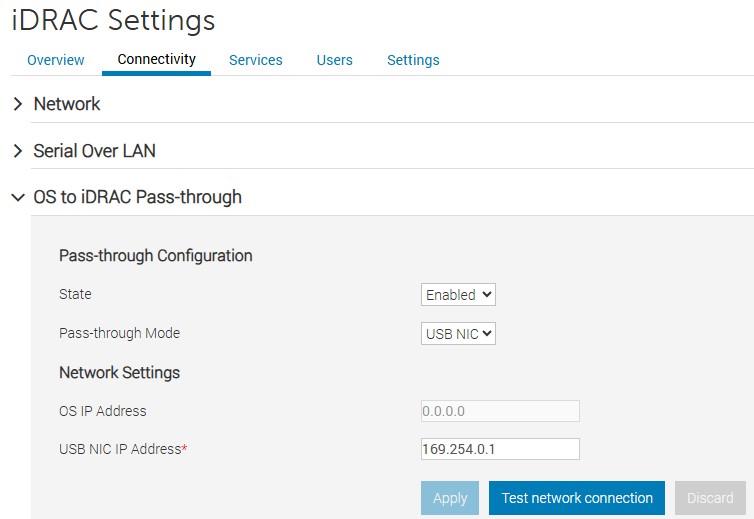
Example iDRAC Pass-through settings
The iDRAC NIC Remote NDIS Compatible Device in the host operating system is used by the SBE CAU plug-in to update firmware. This NIC must be enabled and have an IP address assigned to it. By default, this NIC is enabled and has an APIPA IP address assigned to it that can access the iDRAC pass-through IP address. DHCP client should not be disabled on this NIC.
This is a dedicated link to iDRAC from the host OS and cannot be accessed outside the host OS.
The IP address can be obtained using the following PowerShell command:
Get-NetAdapter -InterfaceDescription "Remote NDIS Compatible Device" | Get-NetIPAddress -AddressFamily IPv4 | Select-Object -Property IPAddress
Example:
IPAddress
---------
169.254.0.2
Azure Local instances using Non-Transparent, Unauthenticated Network Proxy
Azure Local instances using non-transparent, unauthenticated network proxy must have the iDRAC pass-through IP address in the network proxy exclusion list. For information on how to configure the non-transparent, unauthenticated network proxy see, Configure proxy settings for Azure Local.
The following example shows how to configure the APIPA IP address range 169.254.0.0/16 to be in the network proxy exclusion list.
$NoProxy = "localhost,127.0.0.1,.svc,10.0.0.0/8,172.16.0.0/12,192.168.0.0/16,.contoso.com,node1,node2,ClusterName,169.254.0.0/16"
[Environment]::SetEnvironmentVariable("NO_PROXY", $NoProxy, "Machine")
Download Connector – Automated download of future SBE release
Overview
Download Connector is a component in the SBE (Solutions Builder Extensions) that automates the downloading of new SBE bundles as they become available for your cluster. Once an SBE that includes the Download Connector is installed on your cluster, manually downloading and importing follow-on SBE version is no longer required. The update service will automate the downloading of the next available SBE for your Azure Local instance in a similar manner to how the download of the solution upgrade is automated. The Download Connector is part of the SBE version 4.1.2505.1501 and newer.
SBE versions that include the Download Connector also include system and update health checks that proactively verify the ability of the Download Connector to access the required remote resource when it comes time to download the next SBE for your cluster. System health checks are run once per day and update health checks are run at the initial phase of the update process.
Firewall Requirements
The SBE Download Connector running in the Azure Local instance needs to periodically connect to the internet resources to download SBE bundles for your cluster. The following outbound connectivity is required.
| Endpoint Description | Endpoint URL | Port |
|---|---|---|
| SBE bundle download | dl.dell.com/* | 443 |
| SBE download catalog | downloads.dell.com/filestore/Prod/SbeDownloadCatalog/AX_SBE_Download_Catalog.xml | 443 |
| SBE download catalog redirection | aka.ms/DellAzureLocalSBEDownloadCatalog | 443 |
| Digicert Certificate Revocation Status | http://crl3.digicert.com/* | 80 |
| Digicert Certificate Revocation Status | http://crl4.digicert.com/* | 80 |
Installation
Automated Download and Extraction
SBE release starting with 4.1.2505.1501 and newer include the Download Connector that automates downloading and extracting the SBE. Manual download and SBE bundle extraction are unnecessary when an SBE with this capability is already installed or partially installed on the Azure Local instance.
Manual Download and Extract
CAUTION
Steps 3 and 4 must be completed to ensure that the latest SBE Discovery manifest is used.This step is required only when an SBE is not installed in the Azure Local instance (SBE version ‘2.1.0.0’) or the installed SBE is older than version ‘4.1.2505.1501’
SBE bundle zip file has the naming convention Bundle_SBE_Dell_AS-HCI-AX-GenerationNumber_VersionNumber.zip.
-
Download the SBE bundle zip file for your Dell AX server generation using the download link above. The SBE bundles are specific to the AX 14G platforms, AX 15G platforms, and AX 16G platforms
-
Extract the three SBE files from the SBE bundle zip file. There are two xml files and one zip file. Example:
- SBE_Dell_AS-HCI-AX-16G-45n0c_4.2.2506.1600.xml
- SBE_Dell_AS-HCI-AX-16G-45n0c_4.2.2506.1600.zip
- SBE_Discovery_Dell.xml
-
Navigate to https://aka.ms/AzureStackSBEUpdate/DellEMC and press
Ctrl + Sto download the SBE_Discovery_Dell.xml file -
Replace the SBE_Discovery_Dell.xml file that was in the SBE bundle zip with the file downloaded in step 3
There are two options for installing the SBE package. The SBE package can be installed as part of instance creation or imported after instance creation is successfully completed. The importing method is also used to update the SBE to a newer version when the currently running SBE does not include Download Connector capability.
Installing SBE as Part of Instance Creation
Starting with June 2025 Dell golden image release, the SBE files are included in the golden image and already placed in the C:\SBE directory. The following 3 steps do not need to be performed.
- On each server that will be an instance member, create the following directory:
C:\SBE - Copy the three SBE files to the directory
C:\SBEon each server that will be an instance member - Proceed to deploying the instance from the Azure Portal or an ARM template
Importing the SBE After Successful Azure Local Instance Creation
-
Create a directory on a cluster shared volume (CSV) for sideloading the SBE, e.g.,
C:\ClusterStorage\Infrastructure_1\SBE\SBE-AX-16G-45n0c_4.2.2506.1600 -
Copy the three extracted SBE files to this directory
-
Load the SBE files by running the following command with the path to the directory that holds the three extracted SBE files
Add-SolutionUpdate -SourceFolder "C:\ClusterStorage\Infrastructure_1\SBE\SBE-AX-16G-45n0c_4.2.2506.1600" -
Check the state of the SBE that was just added. The state needs to be
Ready.Get-SolutionUpdate | Where-Object -Property PackageType -EQ "SBE" -
Verify that the Azure Local instance is in a healthy state and is ready for the SBE installation by running the following commands on one of the Azure Local instance machines:
Get-SolutionUpdate | Where-Object { $_.State -imatch "Ready" -and $_.PackageType -eq "SBE" } | Start-SolutionUpdate -PrepareOnly -
Wait for the health check to complete. The solution update state will report
HealthCheckingwhile the health check is in progress. -
After the health check completes, run the following command if the solution update state reports
HealthCheckFailed:$Result = (Get-SolutionUpdate | Where-Object {$_.State -imatch "Ready" -and $_.PackageType -eq "SBE"}).HealthCheckResult $Result | Where-Object { ($_.Status -ne "SUCCESS" -and $_.Severity -eq "CRITICAL" ) } | Format-List -Property Title, Status, Severity, Description, Remediation, TargetResourceName, TargetResourceType
All tests with Critical severity must have the Success status before continuing to the next step.
-
Start the SBE installation by running the following command:
Get-SolutionUpdate | Where-Object { $_.State -imatch "Ready" -and $_.PackageType -eq "SBE" } | Start-SolutionUpdate -
The SBE installation progress can be checked by running the following command:
Get-SolutionUpdate | Where-Object -Property PackageType -EQ "SBE" | Format-List -Property ResourceID, Description, State, SBEVersion, UpdateStateProperties, HealthState
For more information see, Update Azure Local via PowerShell.
Known Issues
Partially Installed SBE Version 4.0.0.0 When SBE Is Installed as Part of Cluster Deployment
Description
Get-SolutionUpdateEnvironment reports partially installed SBE when installing the SBE as part of Azure Local instance deployment. SBE version 4.0.0.0 indicates a partially installed Solution Builder Extension (SBE).
Get-SolutionUpdateEnvironment

ResourceId        : redmond
SbeFamily         : AX-16G-45n0c
HardwareModel     : AX-760
LastChecked       : 08/01/2026 14:09:31
PackageVersions   : {Solution: 12.2512.1002.16, Services: 10.2512.0.9, Platform: 12.2512.0.3021, SBE: 4.0.0.0}
CurrentVersion    : 12.2512.1002.16
CurrentSbeVersion : 4.0.0.0
LastUpdated       :
State             : UpdateAvailable
HealthState       : Success
HealthCheckResult : {Storage Services Physical Disks Summary, Storage Services Physical Disks Summary, Storage Services Physical Disks Summary, Storage Services Physical Disks Summary...}
HealthCheckDate   : 07/01/2026 17:50:07
AdditionalData    : {[SBEAdditionalData, Solution Builder extension is partially installed. Please install the latest Solution Builder Extension provided by your hardware vendor. For more information, see https://aka.ms/SBE.]}
Workaround
Reinstall the same SBE version using the SBE import method or automated download method after Azure Local instance deployment successfully completes.
Background
The SBE driver CAU plug-in expects all drivers and firmware in the SBE payload to be installed on the server during or prior to deployment. However, some of the drivers in the SBE payload may not apply to the server model or components in the server model. Microsoft is aware of this limitation and is working to resolve this issue in a future release.
The partially installed SBE issue can also occur if a component firmware version installed on the server is different than what is in the SBE payload. The SBE cannot update firmware or drivers during Azure Local instance deployment.
SBE installation will not downgrade drivers that have a newer version than the same driver in the SBE payload
Dell supports the driver and firmware versions listed here, Support Matrix | Solutions for Microsoft Azure.
Description
The SBE driver CAU plug-in will not attempt to downgrade installed drivers that are higher version than the ones in its payload unless otherwise specified by Dell.
AMD DRTM (Dynamic Root of Trust for Measurement) Driver Fails to Update on AX AMD Platforms When the DRTM Device Was Originally Enabled at Azure Local Instance Deployment Time and Later Disabled
Description
SBE installation fails because the driver CAU plug-in in the SBE is unable to update the AMD DRTM driver to a newer version that is in the SBE payload. The AMD DRTM driver is one of the AMD Chipset drivers in the SBE package. The AMD DRTM driver update fails because the AMD DRTM setting was originally enabled but later disabled.
Workaround
Verify that the AMD DRTM BIOS setting is on. Re-enable the AMD DRTM setting if it is off.
The DRTM option is in the BIOS configuration: System Security -> TPM Advanced Settings -> AMD DRTM
Make sure to suspend and drain the Azure Local cluster node prior to rebooting the node. Make sure that BitLocker protection is disabled for the boot volume on the cluster node before making BIOS configuration changes. Disable BitLocker if it is enabled for the boot volume C:\ prior to rebooting the server for the BIOS changes to take effect. Reenable BitLocker for the boot drive after the server successfully reboots.
Background
AMD DRTM is an advanced security feature that is available on modern AMD CPUs and is used to protect the secure boot enclaves. The AMD DRTM setting is enabled by default on AX servers with AMD CPUs that support the DRTM feature. AMD DRTM should not be disabled.
Previous Releases
Feedback
Was this page helpful?
Glad to hear it!
Sorry to hear that.