Getting Started with Dell Pro AI Studio
Dell Pro AI Studio (dpais) offers a command-line-driven experience for quickly setting up and running AI models on supported Dell machines. This guide walks you through the basic setup: from installation to running your first model.
Install the CLI
To install the Dell Pro AI Studio CLI, you can run the below command in Powershell or CMD (Downloads and installs cli):
powershell -Command "iwr https://dellupdater.dell.com/non_du/ClientService/endpointmgmt/dpais/cli/dpais-cli.x64.msi -OutFile $env:TEMP\dpais.msi; Start-Process msiexec -Wait -ArgumentList '/i',$env:TEMP\dpais.msi"Note: You must open a new shell session after installing (adds to PATH)
Alternatively, download the MSI installer manually from here and follow the setup prompts.
After installation, ensure the CLI is accessible via your terminal by running:
dpais --versionInitialize Dell Pro AI Studio
To set up your Dell Pro AI Studio environment, run the following command in your terminal:
dpais initThis command will help install necessary dependencies and prepare your system for running AI models. You will be prompted to select and install your first AI models during this process.
3. Run a Sample Model
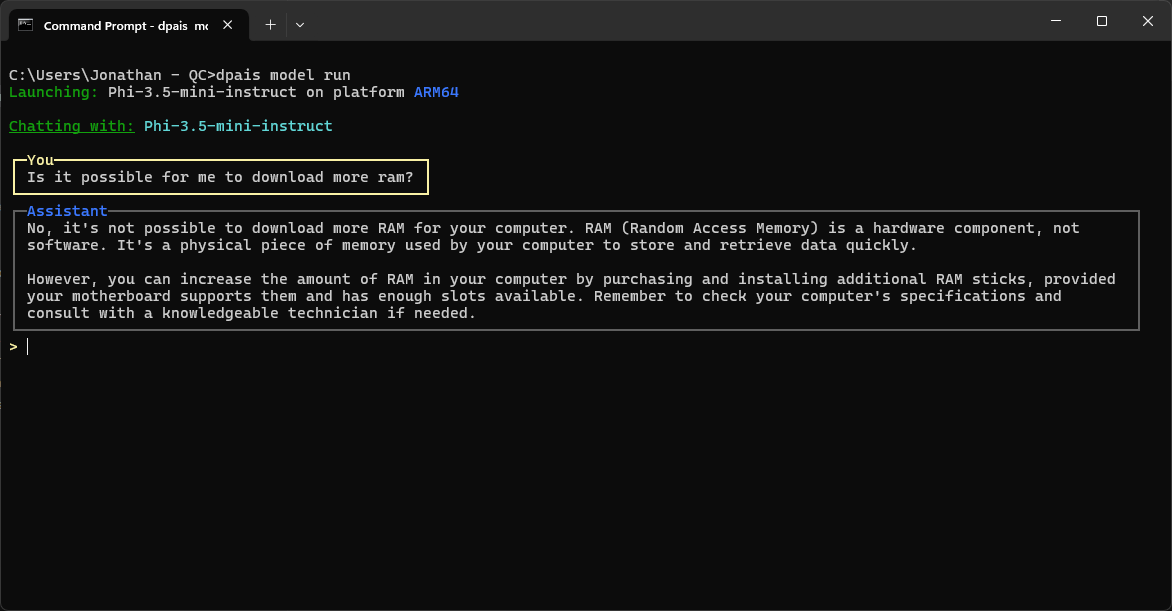
To test your setup, you can run a sample model. Use the following command:
dpais model runYou’ll get a in-terminal prompt to select a model, enter a query, and the model will generate a response.
What’s Next?
Read the How-To-Guides or SDK examples for more detailed information on interfacing with Dell Pro AI Studio to build AI applications.